Quick Answer
tl;dr: Trigger a Zap on Jobber’s “Job Closed” event, pull the client’s phone number straight from that job record, and send them a text with your direct Google review link. Add a short delay if you don’t want the request firing the second the technician leaves, and use Jobber’s built-in review tool instead if all you need is a basic automatic send.
You do good work. Most of your customers would probably leave you a great review if someone asked them at the right moment. The problem is that “asking” usually depends on a technician or office manager remembering to do it after they’ve already moved on to the next job, and on a busy day, that follow-up is the first thing to get skipped.
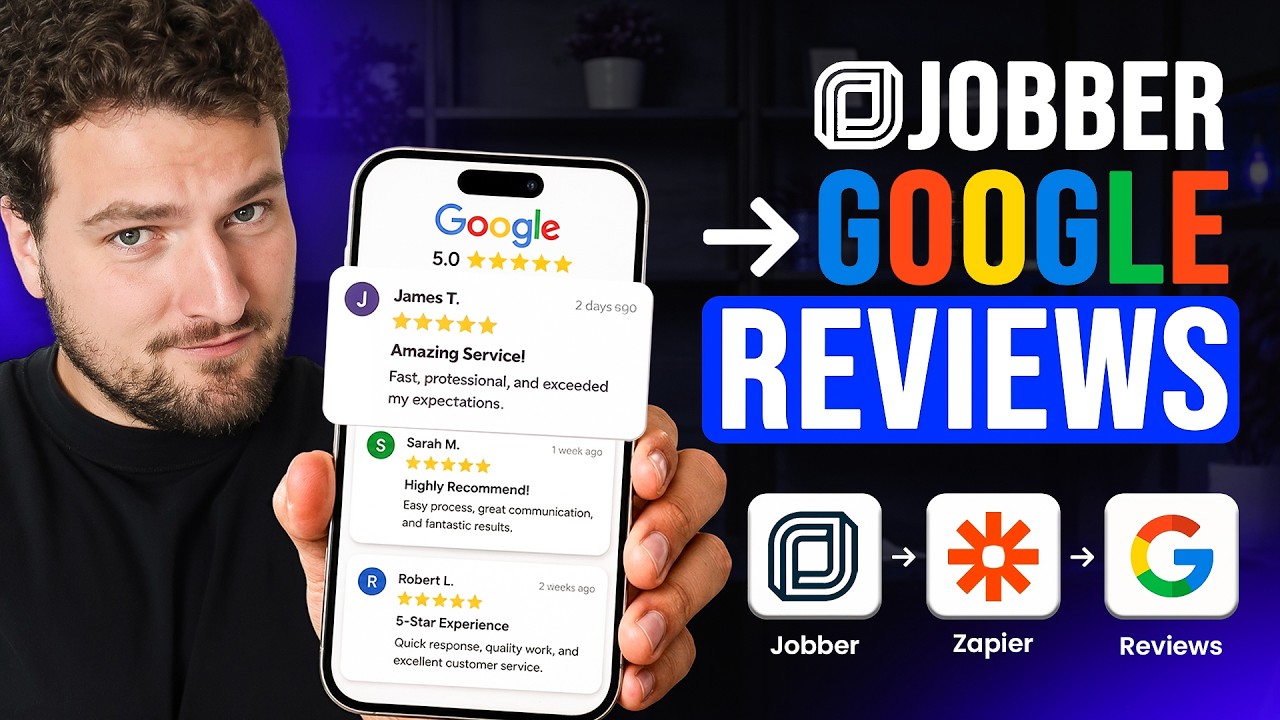
You can fix that with a simple automation: the moment a job closes in Jobber, Zapier sends the customer a text (or email) with a direct link to leave you a Google review. No one on your team has to remember anything.
Watch the companion walkthrough below, or follow the steps below to build it.
What You’re Building
The automation has three simple parts:
- A trigger that fires when a job is marked closed in Jobber.
- A step that pulls in the customer’s phone number (or email) from that same job record.
- An action that sends a short, personalized message with your Google review link.
That’s the whole workflow. Once it’s live, every closed job automatically results in a review request. No spreadsheets, no sticky notes, no “I’ll ask them next time.”
Step 1: Trigger the Zap When a Jobber Job Closes
In Zapier, start a new Zap and search for Jobber as your trigger app. If you haven’t connected Jobber yet, Zapier will walk you through it, as long as you’re logged into Jobber in your browser, the connection is automatic.
For the trigger event, choose Job Closed. You could also trigger off an invoice update, but job closed is the cleanest signal that the work is actually done. Some businesses prefer Visit Completed (useful for recurring service like cleaning or lawn care) or Invoice Paid (useful if you’d rather ask after the bill is settled), any of the three works, and you can always change it later.
Test the trigger and confirm Zapier can pull a sample completed job. Once you see real job data come through, move on.
Step 2: Pull In the Customer’s Contact Info
This part is automatic once your trigger works: every field from that Jobber job, including the client’s name and primary phone number, becomes available to map into the next step. You don’t need a separate lookup step; Jobber sends the client details along with the job record.
Step 3: Send the Review Request by Text (or Email)
For the action step, search for an SMS app in Zapier. The video above uses Twilio, since that’s where the phone number is already set up, but there are several SMS-sending apps that connect to Zapier just as easily, use whichever one you already have a business phone number through.
Choose Send an SMS as the action, then map the fields:
- From: the business phone number you have set up in your SMS provider
- To: the client’s primary phone number, pulled from the Jobber step
- Message: your review request template (see below)
Turn on “send large messages as a single message” so carriers don’t split your text into multiple pieces.
Getting Your Google Review Link
Don’t send customers to a generic search results page. Instead, send them straight to the review box. To get that direct link, search your business name on Google while signed into the Google account that owns your Google Business Profile (not a personal Gmail account).
You’ll see a management panel with a button labeled Ask for reviews. Click it, and Google generates a link that takes anyone who clicks it directly to the screen for leaving a review; no extra clicks required.
Copy that link into your message template. It’s the single most important piece of the whole automation: a review request with a one-click link gets used; one that makes a customer hunt for your business first often doesn’t.
Writing a Message Customers Will Actually Act On
Keep it short, specific, and clearly from a real business, not a generic automated blast. A message like this works well:
“Hi [customer first name], this is [Your Business Name]. Thanks again for trusting us with your recent service. If we earned it, would you mind taking 30 seconds to leave us a review? [Google review link]”
Swap in your own business name and tone, but resist the urge to add too much. A short, plain message reads as sincere. A long one reads as a form letter.
Fixing the Missing Country-Code Error
If your text messages fail to be sent to some customers, the likely cause is a missing country code. Many CRMs pass along a phone number without the leading “1” that SMS providers expect.
If you run into this, add a quick step between the Jobber trigger and the SMS action that adds “1” to the front of the phone number (a simple Formatter step or an AI step both work), then map the corrected number into your SMS step instead of the raw one. Not every account needs this fix, only add it if you actually see delivery failures.
Should You Add a Delay Before Sending?
Some businesses prefer to wait before asking, so the request doesn’t feel like it fired the instant the technician walked out the door. If you want that, add a Delay step (Delay For, set to an hour or two) between the trigger and the message step. Zapier will hold the Zap and send the text or email after that window passes.
There’s no universally “right” wait time. Somewhere between immediate and a few hours after the job is the range most businesses land on, since the experience is still fresh but the request doesn’t feel rushed.
Text, Email, or Both?
Text tends to get a faster response, since most customers see it right away and the link opens directly on their phone. Email is worth adding as a second touch, especially for commercial clients or larger jobs where a more formal note fits better.
If you want both, just add a second action step in the same Zap. For email, connect Gmail or Outlook, choose Send Email as the action, and reuse the same review link and personalization fields.
Do You Even Need Zapier?
Not necessarily. Jobber has its own built-in review request feature that can send review requests automatically after a job closes, without any Zapier setup. If you’re only sending a simple text or email tied to a Jobber trigger, Jobber’s native tool is the simpler starting point.
Zapier earns its place once you want more control, a custom message template, a specific delay, a phone-number fix, or routing through your own SMS/email provider instead of Jobber’s built-in one. It’s also the better choice once you want to layer in automated follow-up beyond the review request itself, or connect the same job-closed trigger to other tools you already use.
If you use a different field-service CRM, see how to automate review requests from Housecall Pro.
Want more practical automations like this?
Join the AI Automation for Home Services newsletter for simple, step-by-step ideas you can use to respond faster, follow up better, and remove manual work from your business.
You can also watch more walkthroughs on Bryan Shankman’s YouTube channel.
Frequently Asked Questions
How long should I wait after a job before sending a review request?
Most businesses send the request within a couple of hours of the job closing, while the experience is still fresh. If a job closes late at night, it's worth delaying until the next morning rather than texting a customer at 11pm.
How do I get my Google review link?
Search your business name on Google while logged into the Google account that owns your Google Business Profile, then click the Ask for reviews button in the management panel that appears. Google generates a direct link you can paste into your message template.
Should I use Jobber's built-in review feature or build this in Zapier?
Jobber's built-in Reviews tool is the simpler option if a basic automatic text or email after a closed job is all you need. Zapier is worth the extra setup once you want a custom message, a specific delay, or to route the request through your own SMS or email provider.
Is it against Google's policies to automate review requests?
No. Automating the request itself is fine. What's against policy is gating reviews (only asking happy customers), offering incentives for positive reviews, or otherwise trying to manipulate ratings. Ask every customer the same way, every time.
Why isn't my automated text going through to some customers?
This is usually a missing country code. Add a formatting step in Zapier that prepends “1” to the phone number before it reaches your SMS action, then map the corrected number instead of the raw one.
Should review requests go out by text, email, or both?
Text alone works well for most residential service businesses because customers see it quickly and the link opens right on their phone. Adding email as a second touch is worth it for commercial clients or larger jobs where a more formal message fits.