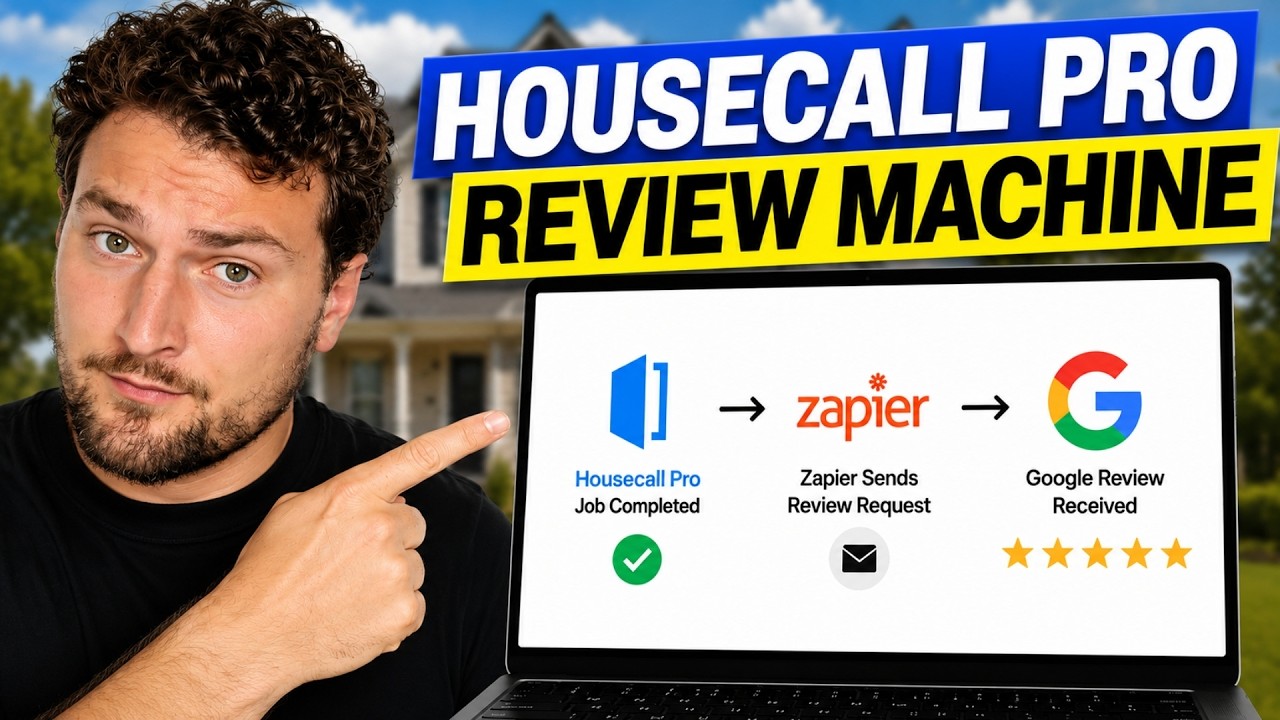
Turn every completed Housecall Pro job into a Google review automatically. Housecall Pro has a native tool that does the basics, and a Zapier build that gives you real control over the message, the timing, and where the request goes. Here’s how both work, and which one to actually use.
Watch the companion walkthrough below, or follow the steps below to build it.
Quick Answer
tl;dr: Housecall Pro can text and email a review request the moment you mark a job “Finished,” and that’s a fine five-minute starting point. But it sends a generic message on Housecall Pro’s timing, with no way to customize it.
Building the same trigger in Zapier takes a bit longer to set up, and gets you your own message, your own timing, your own SMS provider, and a foundation you can layer more automations onto later. If you’re only going to do one of these, do the Zap.
I’ve set this up for enough home service businesses to know it’s one of the highest-leverage stretches of time you’ll spend on your Housecall Pro account all year. Here’s exactly how both versions work, and what actually moves the needle versus what’s just noise.
Why Automate Review Requests?
Most happy customers will not leave a review unless you ask. Meanwhile, unhappy customers are more likely to post without being prompted, which can create an unbalanced review profile.
Timing matters. Requests sent shortly after the job usually perform better than ones sent a day or two later. Text also tends to get seen faster than email.
A healthy target is for around 15–25% of completed jobs to generate a review. If you are below 5%, the issue may be poor timing, no follow-up, or customers simply not seeing the request.
It works for the same reason missed-call text-back works: the faster you respond, the better the result. Ask while the service is still fresh in the customer’s mind.
Two Ways to Automate This, and Which One to Actually Build
Housecall Pro’s native tool lives in Settings, is already connected to your jobs, and takes about five minutes to turn on. It sends one text and one email at the trigger point you choose. Good for testing the waters, limited once you want more.
A Zapier build takes a bit more setup, maybe 20-30 minutes the first time, but gives you:
- Your own message, in your own words, not Housecall Pro’s generic template
- Full control over timing, including a custom delay
- The choice of your own SMS provider instead of being locked into Housecall Pro’s routing
- A foundation you can build on later, like an automated follow-up if no review comes in, without starting over
A few extra minutes of setup for a message that sounds like it came from your business, not a template, is a good trade for most companies. That’s the version this article focuses on. The native settings are below too, in case you want the absolute fastest starting point first.
Turning On Housecall Pro’s Native Review Requests
If you want the built-in version running today, here’s the path:
- Click the gear icon (Settings) in the lower left corner of your Housecall Pro account.
- Select Marketing Center from the left-hand settings menu.
- Click the Reviews tab.
- Toggle Active on. This turns on automatic emails and texts after a job is finished or paid.
- Under “Send a review request when,” choose either Job is finished or Job is paid.
- Connect your Google Business Profile (and Facebook, if you use it) so requests route to the right place.
- Set your distribution percentages, or leave “Optimize requests for me” on.
One quirk worth knowing: Housecall Pro only sends customers directly to your Google Business Profile if they have a Gmail address on file, since Google requires a Google account to leave a review. Everyone else gets routed to Facebook or your own review page instead.
Your Google review count will grow slower than your total review count for this reason. That’s normal, not a setup mistake.
Housecall Pro also lets you add a Customer Tag or Job Tag to suppress the request on a specific job or customer, useful for a warranty callback or a job you already know didn’t go well.
Building the Review Request in Zapier
Here’s the version worth building if you want more than the basics. It has three moving parts: a trigger that fires when a job is marked complete, a step that pulls the customer’s contact info from that job, and an action that sends the review request.
Step 1: Trigger the Zap When a Housecall Pro Job Completes
In Zapier, start a new Zap and search for Housecall Pro as your trigger app. If you haven’t connected it yet, you’ll need your Housecall Pro API key, which you can grab from your account settings; the connection takes a couple of minutes.
Housecall Pro is fairly limited on trigger options for Zapier compared to some other CRMs. For a review request, you’ve really got two realistic choices: New Job Completed or Invoice Paid.
Job Completed is the more common pick, since it fires while the visit is still fresh for the customer. Invoice Paid works better if payment often lags behind the actual job by a few days.
Test the trigger and confirm Zapier pulls in a sample completed job before moving on.
Step 2: Send the Request by Text With Twilio
Search for an SMS app as your action step. Twilio is the most common choice if you already use it for business texting, but any SMS-sending app that connects to Zapier works.
Choose Send SMS as the action, then map the fields:
- From: the number connected to your SMS provider
- To: the customer’s mobile number, pulled from the Housecall Pro trigger step above it, not typed in manually
- Message: your review request template
Turn on “send large messages as a single message” so the text doesn’t get awkwardly split into multiple pieces.
A short, personal message works better than a long one. Something like:
“Hi [customer first name], this is [Your Business Name]. Thanks again for trusting us with your recent service. If we earned it, would you mind taking 30 seconds to leave us a review? [Google review link]”
Pull the customer’s first name in the same way you pulled their phone number, so every message is personalized automatically.
Finding Your Direct Google Review Link
This trips people up more than anything else in the workflow, but it’s simple. Make sure you’re logged into the Google account tied to your Google Business Profile, then search your business name on Google. A business panel appears with a button labeled “Ask for reviews.”
Click it, and Google generates your direct review link on the spot, along with a QR code you can use for email or anything printed. Paste that link into your message template. A review request with a one-click link gets used; one that makes a customer hunt for your business first often doesn’t.
Testing the Text Message
Before turning the Zap on for real customers, swap the “To” field to your own cell number and run a test. Send it, check what actually lands in your messages app, click the link, and confirm it goes straight to your Google review page. Once that looks right, switch the “To” field back to the customer’s mobile number field and you’re ready to go live.
Adding a Delay Before It Sends
Not every business wants the request firing the instant a job is marked complete. Add a Delay step (Delay For, set to an hour or two) between the trigger and the send step if you’d rather give the customer a little time before asking. There’s no universally right wait time; somewhere between immediate and a few hours after the job is the range most businesses land on.
Sending by Email Instead, or In Addition
The same structure works for email. Swap the Twilio step for a Gmail or Outlook step, choose Send Email as the action, and select the business address you want it sent from. Pull in the customer’s email and first name from the Housecall Pro trigger the same way, and write a similar short, direct message.
Email gives you more room to add a QR code or a photo, but keep the core ask just as brief as the text version. Text should still lead the way. It gets opened and acted on far more often, with email as a solid second touch for customers who prefer it.
Filtering Out Jobs That Shouldn’t Get a Request
Automating the ask means you’re also automatically asking unhappy customers, at scale, with no filter, unless you build one in. Add a Filter step between your trigger and your send step, and exclude jobs marked canceled, refunded, or flagged for a follow-up visit.
A quick end-of-job gut check from your tech catches most problems before they ever reach this automation; anything that feels shaky shouldn’t get an automated public review request in the first place. Handle the complaint personally, and ask for the review later, if at all.
Mistakes to Avoid With Either Version
- Turning it on and never checking the numbers. Look at your review-to-job ratio monthly; if it’s low, the fix is usually timing, not a new tool.
- Triggering off “job paid” instead of “job finished” when payment lags by days.
- Skipping the filter (or tags, in the native version) that excludes jobs that didn’t go well.
- Assuming every customer can leave a Google review. Non-Gmail customers physically can’t; that’s a Google limitation, not a setup mistake.
- Sending more than two or three touches total. Beyond that you’re not generating more reviews, you’re generating complaints about being texted too much.
Getting the review engine running is one piece of a bigger system, and it pairs well with the four workflows that actually move leads through your pipeline and choosing between SMS and voice AI for booking new jobs. If you run a different field-service CRM, see the Jobber + Zapier version of this same build.
Frequently Asked Questions
Should I use Housecall Pro's built-in reviews tool or build this in Zapier?
Housecall Pro's native tool is the faster starting point if you just want the basic version running today. Zapier is worth the extra setup for most businesses, since it gives you your own message, your own timing, and a foundation to build more automations on top of later.
How long should I wait after a job before sending a review request?
Most businesses send it within an hour or two of the job finishing, while the visit is still fresh. Response rates drop sharply after the first day.
Where do I find my business's direct Google review link?
Log into the Google account connected to your Google Business Profile, search your business name on Google, and click the "Ask for reviews" button in the business panel that appears. Google generates your direct link and a QR code instantly.
Is text or email more effective for review requests?
Text. It gets opened far more often and gets a meaningfully higher response rate. Email is worth adding as a second touch, especially for customers who prefer it.
Can I stop a review request from going out to an unhappy customer?
Yes. In the native tool, add a Job Tag or Customer Tag to exclude that job. In the Zapier build, add a Filter step that excludes canceled, refunded, or flagged jobs before the send step ever runs.
Do I need a paid Zapier plan for this?
Zapier's free tier can run a simple version of this workflow. If you add a delay step, a filter step, or you're processing a high volume of jobs each month, you'll likely need a paid plan to support it.
Is it legal to text customers automated review requests?
Review request texts are generally treated as transactional rather than marketing messages, since they relate to a service already performed, but always give customers a clear way to opt out and honor "STOP" requests immediately. If you're texting a large customer list or running broader campaigns, it's worth a quick check with a compliance advisor on current TCPA opt-out rules.
Want more practical fixes like this?
If you found this useful, this is exactly the kind of thing I break down every week: practical fixes for the software you're already paying for. Join the newsletter and I'll walk you through the next one.