Quick Answer
tl;dr: Rate every Google LSA lead after you know the outcome, including booked jobs and poor fits. A rating is not a refund request, but it tells Google which leads were useful and may flag an obvious mismatch for a credit. Cancellations and price shoppers are usually still valid leads, so reserve dissatisfied ratings for genuine problems such as spam, duplicate leads, or services you do not offer. Keep your job types and service areas current so Google has the right information before it sends the lead.
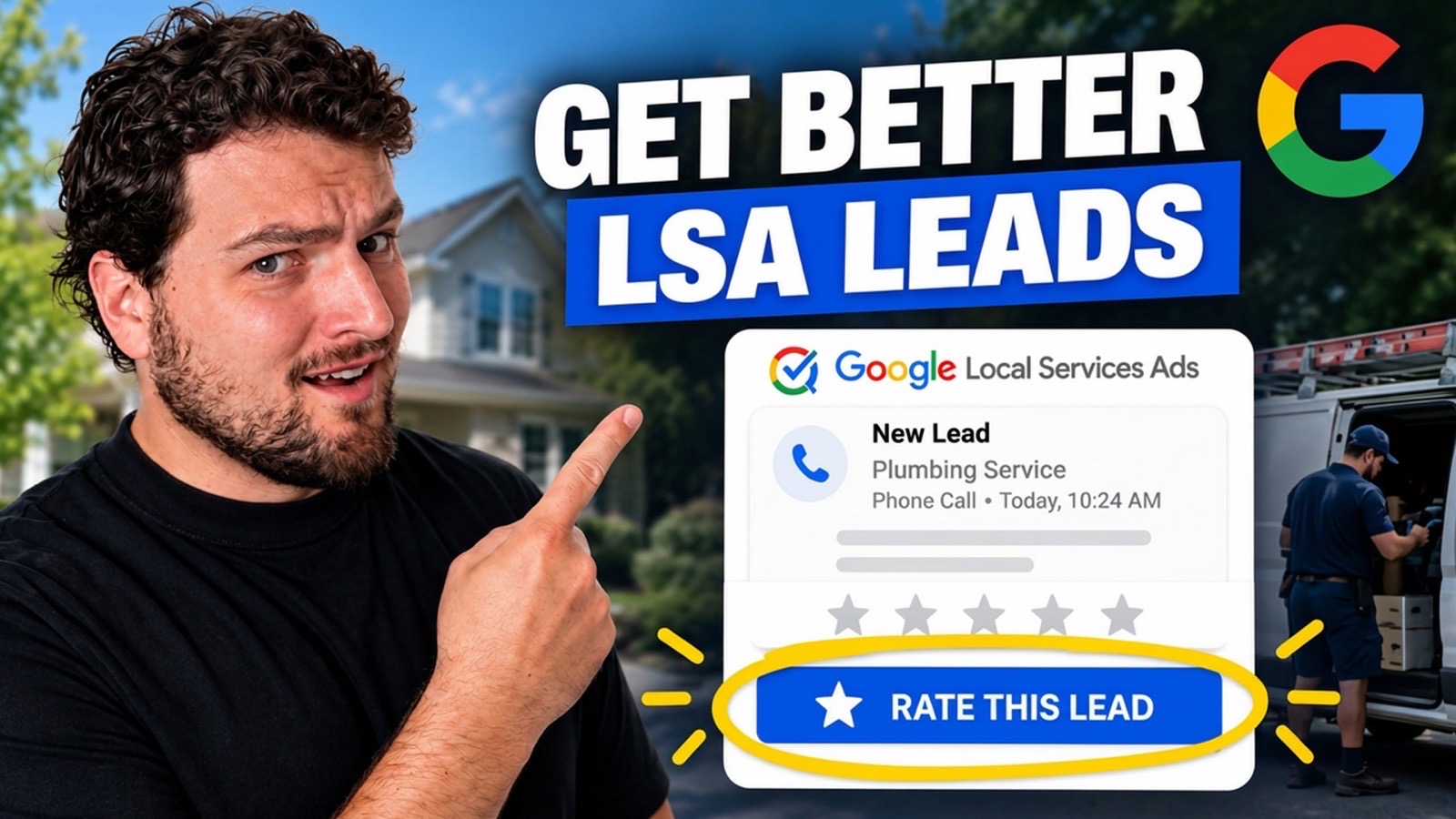
As a Google Local Services Ads user, you know the “Rate This Lead” button that appears on each lead in your dashboard. Most contractors take no action, or they take it wrong by rating the entire lead as dissatisfied and hoping it will get them a refund.
In simple terms, rating is a way of feeding Google good and bad leads, which helps the search engine deliver better leads to you over time. It may also lead to a credit on a very bad lead, but it’s not a standalone request for a credit. The rest of this guide explains how it works and how you can rate a lead correctly within your LSA account.
Why Rating Your Google LSA Leads Matters
In many ways, the rating of your Google LSA leads is crucial.
Google’s Local Services Ads program is not a pay-per-click auction. It operates on machine learning models that determine which leads to send you, and these models get better (or worse) at matching your business based on the feedback you provide.
There used to be an old manual dispute process, where you’d mark a bad lead as such and wait for a human review, and Google took that away in 2024. Instead, there’s an automated system: Google’s AI reviews leads on its own and awards credits for obviously invalid leads, typically within a couple of days.
What’s left of the manual process is “Rate This Lead,” and that now acts as the backup mechanism for anything the automated system missed, and the primary way of communicating to Google which leads were good.
That second part is what most contractors overlook. If the rating tool is only used for complaints, you’re giving Google only half the picture.
The 3 Things to Know Before You Rate a Lead
1. Honestly rate all of the leads (good or bad)
Once you’ve got a lead that has closed and is now a real, paid job, let Google know that. Rate it Satisfied or Very Satisfied and, if applicable, indicate whether it turned into a booked customer or whether it’s a high-value job type for your business. This feedback helps the models Google uses to deliver more leads to you, instead of fewer.
You might want to only record the ones that are bad leads because they feel more urgent. But a business that only rates unhappy is giving Google an incomplete and skewed picture of what actually works for its account.
2. There is a chance (not a certainty) that a credit will occur
A dissatisfied rating doesn’t count as a refund request. If Google agrees that the lead was invalid, spam, or a complete mismatch for your business, it may give you a credit to your account, but until it does, the original charge stays on your invoice, and there’s no guarantee it will happen.
The rating represents the first step toward a potential credit, not the credit itself. It’s also the only way, apart from Google’s own automated pre-screening, to catch something that slipped by.
3. A bad outcome does not equal an invalid lead
This is the factor that causes the most problems for contractors. Google can only guarantee that it sent a real person who reached out to your business through the platform. Once that call or message happens, it’s on you and the customer, not Google.
These outcomes are still broadly accepted as chargeable leads, despite the lack of “feel good” moments:
- The customer cancels after being booked
- They were merely shopping around for prices
- They never called back after you followed up
- It’s a job you’re able to do but didn’t do
Where you do have a real case for a credit is an egregious mismatch: a roofer receiving a call for lawn care services, for instance, or a lawn care company receiving a request for hedge trimming services they don’t provide. That’s what the feedback tool is designed for.
Understanding How to Rate Leads in Your LSA Account
Open up your Local Services Ads dashboard and tap “Rate this lead.” There are 5 satisfaction options that you’ll see:
- Very satisfied
- Somewhat satisfied
- Neither pleased nor displeased
- Somewhat dissatisfied
- Very dissatisfied
When a lead has closed, select “satisfied” or “very satisfied,” and you’ll be given a short list of reasons to provide: it converted into a booked customer, it could convert in the near future, it’s relevant to the services you offer, or it’s a service that’s high value to your business. The more specific the signal, the more useful it is.
On the dissatisfied end, the reason options cover the common scenarios: not your service area, not a service you provide, not ready to book, spam, duplicate, or someone selling you something instead of buying from you. “Neutral” has no follow-up options; you just submit it as-is.
Make Sure Your Job Types and Service Areas Are Current
The problem often isn’t Google’s targeting; it’s that the job type list in your own LSA profile is outdated. In Profile & Budget, make sure you’ve selected job types that match what you actually do and don’t offer.
Google provides a limited set of job type choices, which means you may not find an exact match for every specialty. Match as closely as you can. The more your profile reflects your actual service list, the fewer irrelevant leads you’ll get charged for up front, which matters more than any credit you might earn after the fact.
The Bottom Line
Rating leads consistently, both the good ones and the bad ones, is what gives Google’s system enough real signal to send you better matches over time. We’re building a direct integration with LSA that links leads into your calls, text messages, and appointments, so you’re not stuck reconstructing the customer journey from memory every time you log into the dashboard.
Frequently Asked Questions
How do I rate a lead in Google Local Services Ads?
In your LSA dashboard, open the lead and select “Rate this lead.” Choose one of five satisfaction levels, then a follow-up reason (available for both satisfied and dissatisfied ratings).
Does rating a lead automatically include a refund?
No. Rating a lead is not a request for a refund. Google might grant a credit if it believes the lead was invalid, but the charge stays on the account until that's reviewed, and no credit is guaranteed.
What's the difference between a bad lead and an invalid lead?
A bad outcome, like a cancellation or a price shopper, is typically still a legitimate, chargeable lead. An invalid lead is an obvious mismatch, spam, or outside the services you provide.
Is it still possible to manually dispute Google LSA leads?
In 2024, Google replaced its manual dispute process with an automated, AI-driven credit system. The closest thing to a manual dispute now is “Rate This Lead,” used to flag anything the automated review missed.
Why am I getting leads for jobs I don't do?
This is typically due to your job type settings in Profile & Budget. Review and adjust the list of services attached to your account to match what you actually provide.
When will an LSA credit appear?
Google doesn't publish a set timeframe, and it varies by case. When credits are awarded, they're usually applied to your account balance rather than paid out, and the original charge stays on your invoice until then.
Want more practical breakdowns like this?
If this kind of breakdown is useful, I send one of these every week. Join the newsletter and I'll walk you through the next one.