Quick Answer
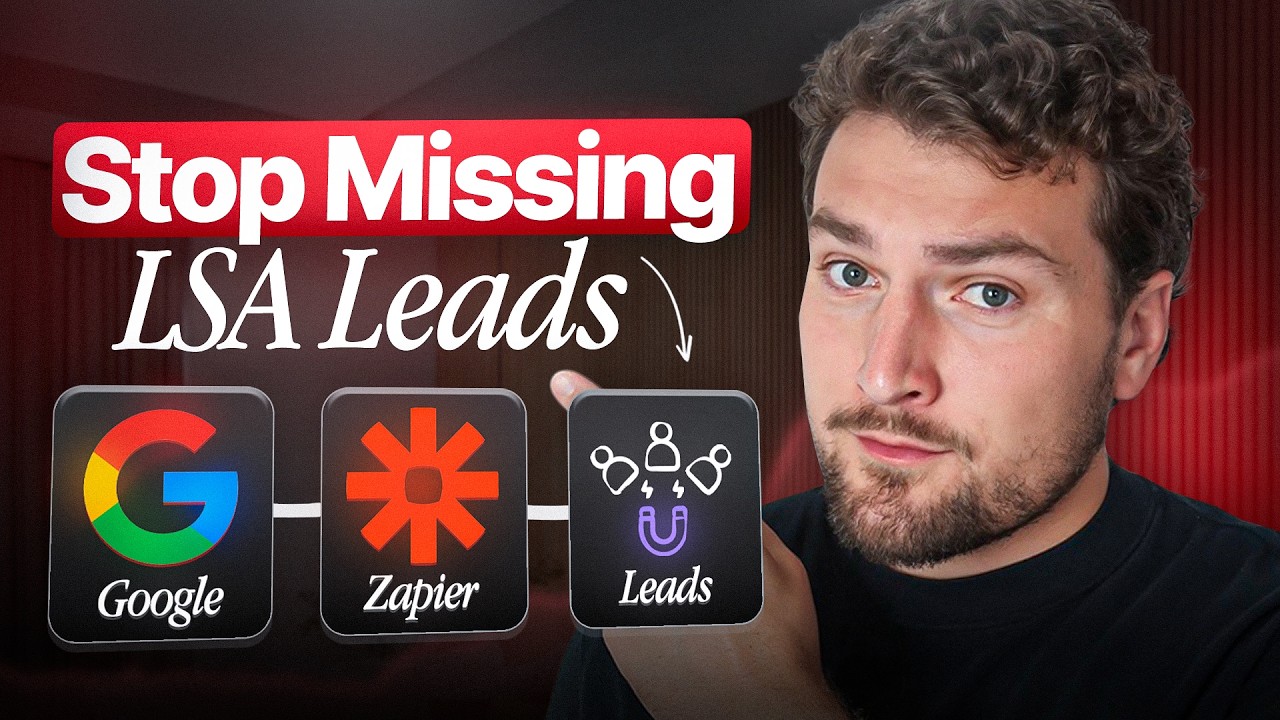
tl;dr: Point your Google LSA text notifications at a Twilio number, catch that notification in Zapier, use AI to pull out the lead’s details, and send an AI-generated reply back through Twilio within seconds. Google forwards it to the homeowner and counts it toward your response time, which directly affects your ranking and how many leads you win.
Every minute you wait to respond to a Google Local Services Ads (LSA) message lead lowers your odds of winning that job. Most home service businesses can’t stop what they’re doing every time a new lead comes in, so here’s how I build an automation that responds to Google LSA messaging leads 24/7/365 in under 10 seconds, using nothing but Zapier, Twilio, and AI.
You don’t need to buy another piece of software to do this. If you already have a Zapier account (or are willing to start a trial) and a Twilio number, you can have this running in about 20–30 minutes.
Watch the walkthrough below, or follow the steps below to build it.
The 3 Types of Google LSA Leads (and Why This Build Is for One of Them)
Before we touch any automation, you need to understand something about Google LSA: there are three different ways a homeowner can contact you through it, and they behave completely differently.
Go search “plumber near me” or “HVAC near me” on Google and look at the sponsored results at the top. Those are LSA ads. A homeowner can reach one of those businesses three ways:
- Get phone number. Google shows the homeowner a masked number. They call it, it patches through to you, and you pay for that call as a lead.
- Book now. This opens your booking calendar directly (Service Titan, Housecall Pro, Jobber, whatever you have connected), and the homeowner books a slot themselves.
- Get a quote. Aka a messaging lead. The homeowner types out what they need and sends it through LSA’s messaging system.
Phone leads and booking leads are already fairly well handled. You pick up the phone, or your booking software does the work. Messaging leads are the trickiest, because someone has to actually read the message and reply, and most shops don’t have someone watching for that 24/7. That’s exactly the gap this automation closes.
What a Google LSA Messaging Lead Actually Looks Like
A messaging lead has a few core parts: the message itself (“I need help with my toilet”), sometimes a specific service selection, and the homeowner’s contact details. Here’s the part people don’t realize: you never text or email the homeowner directly. Google controls that relationship completely.
The homeowner sets their own contact preference (SMS, phone, or email) when they submit the lead. All you do is send your reply back to Google, through a unique phone number Google assigns to that lead, and Google forwards it to the customer using whatever method they chose. Your only job is getting the reply back to Google quickly. Google handles the rest.
Why Response Speed Is a Ranking Factor, Not Just Good Manners
Google actually tracks how fast you respond to LSA messages and can display an estimated response time, anywhere from a few minutes to one day, right in your ad. Consumers see that number, and Google factors your responsiveness into how often your ad shows up and where it ranks. Businesses that respond slowly or inconsistently see fewer leads and pay more per lead they do get.
On top of that, homeowners searching for a plumber or an electrician are usually messaging two or three businesses at once. Whoever replies first often wins the job before the others even see the message. Speed isn’t a nice-to-have here. It’s the whole game.
How the Automation Works, End to End
Here’s the 30-second version before we get into the weeds: every time you get a new LSA message, Google sends a text notification to a phone number of your choosing.
We capture that notification in Zapier using Twilio, use AI to pull out the lead’s details, check whether this is their first message or a follow-up, generate an appropriate reply with AI, and send it back through Twilio, which routes it through Google to the customer.
Everything still shows up inside your LSA dashboard, so nothing is hidden from your normal workflow.
Step 1: Set Your LSA Text Notification Number
Log into your Google LSA dashboard at ads.google.com/local-services, go to Profile and Budget, and scroll down to Settings. Under message leads, find “messaging preferences for receiving leads” and set the text notification number to the Twilio number you’ll set up in the next step.
If you can’t change this number, it’s usually one of two things: you’re not the admin/owner on the ads account (ask whoever set it up to add you as an admin), or you’ll need to contact Google’s help center directly and ask them to update it for you.
Step 2: Capture the Notification in Zapier With Twilio
You need a phone number that can receive text messages and that Zapier can connect to. Twilio is the most common way to do this, though your VoIP provider or another texting platform may already offer it. Getting a Twilio number set up is its own separate task, worth doing before you start building the Zap.
In Zapier, search for the Twilio app and set your trigger event to “New SMS.” Choose the number you set up, and Zapier will pull in example texts so you can see the data shape before building the rest of the automation. Every text coming into this number, for this use case, is a Google LSA notification.
Step 3: Use AI to Extract the Lead’s Details
Add an AI step (Zapier’s built-in AI works fine) and give it a simple prompt: extract the lead’s phone number (the “from” number on the text), the customer’s name if it’s included, and their location from the notification text.
That “from” number matters more than it looks. Google LSA sends every notification about a specific lead from a unique number tied to that lead, so if you text or call that number back, it reaches the homeowner. If the same person messages you three times, all three notifications come from that same unique number, which means you can use it as a reliable way to identify repeat contact from one lead.
Step 4: Track Repeat Messages With a Zapier Table
Here’s a detail that matters more than it sounds like it should: LSA leads rarely message you just once. They’ll send an opening message, then follow up, then follow up again. If your automation just sends the same “thanks for reaching out” reply every single time, it starts to feel obviously robotic. That undercuts the whole point of automating this in the first place.
A Zapier Table is basically a lightweight spreadsheet Zapier can read from and write to during a Zap run. Set one up with three fields: phone number, customer name, and location. Configure the lookup on phone number, and turn on “create record if it doesn’t exist.” That way, the very first time someone messages you, they get added to the table automatically, and any message after that will match an existing record.
Step 5: Split First-Time vs. Follow-Up Leads With Paths
Add a Paths step with two branches.
- Path A: only continue if the lead’s phone number does not already exist in your table. This is a brand-new lead.
- Path B: only continue if the phone number does exist in the table. This is a follow-up message on an existing thread.
Use “contains” rather than an exact match here, since phone number formatting can vary slightly between systems.
Step 6: Generate a Tailored AI Reply for Each Path
In the new-lead path, prompt the AI to write an opening message: a first-name greeting if you have one (otherwise “hey there”), a one-line summary of what they asked for pulled straight from their message, and a line letting them know your team will follow up shortly or that they can call a specific number for immediate help.
In the follow-up path, write a different message. Something that acknowledges you’ve already heard from them and gives them a next step, like a booking link or phone number, rather than repeating the same opening line. This is the whole reason for building the table and paths in the first place: two believable messages instead of one obviously canned one.
You don’t have to build it this way. If you’d rather keep things simple, you can skip the table and paths entirely and just send one auto-reply to every message. It’s less polished, but it’s faster to set up and still gets you a fast, consistent response, which is the part that actually protects your ranking.
Step 7: Send the Reply Back Through Twilio
Add a final Twilio step, choose “send SMS,” send it from your main number, and set the destination to the lead’s number captured back in step 3. The message body is whichever AI-generated reply came out of the path that fired.
Turn on “send large messages” so longer replies don’t get cut off. Test it, and you should see the reply land, and it’ll show up back inside your LSA dashboard as a normal message, exactly as if you’d typed it yourself.
Do You Need All of This, or Can You Simplify It?
No. The table-and-paths setup is the more advanced version, and it solves a real problem (not sounding repetitive to leads who message more than once). But a single, consistent auto-reply sent within seconds of every LSA message is still dramatically better than what most shops are doing today, which is nothing until someone gets around to checking their phone. Build the simple version first if you’re pressed for time, and add the repeat-message handling later.
This same instinct (start with the simplest thing that gets a fast reply out the door) is the same logic behind missed-call text-back for your other lead sources. Speed beats polish, especially at the start.
What This Automation Doesn’t Replace
This is a message auto-reply, not a full conversation engine. It’s built to acknowledge a message lead fast and set expectations. It won’t negotiate pricing, book a job outright, or replace a real conversation with a homeowner. If you’re also missing LSA phone-call leads, that’s a different problem with a different fix. Something closer to an AI voice receptionist that can actually pick up and qualify the caller in real time.
It’s also worth being honest that this takes some setup time and a little comfort with Zapier. If that’s not something you or your team wants to own, that’s a reasonable argument for choosing between a DIY Zapier build and a paid tool instead. Just go in knowing what you’re paying for is the setup and maintenance, not something you couldn’t build yourself.
Frequently Asked Questions
What are the three types of Google LSA leads?
Phone calls (a masked number that patches through to you), "book now" (direct booking through your calendar software), and "get a quote" messages. This automation is built specifically for the messaging type, since it's the one most likely to sit unanswered.
How fast should I respond to Google LSA leads?
As fast as possible. Ideally within a couple of minutes, and this automation gets you there in under 10 seconds. Google tracks and displays your response time, and homeowners are often messaging multiple businesses at once, so speed directly affects both your ranking and whether you win the job.
Do I have to pay for software to auto-reply to LSA leads?
No. Every tool marketed for this (LeadTruffle and similar) charges a monthly fee or cost per-lead, depending on their pricing model. You can build the same core function yourself with a Zapier account and a Twilio number for a fraction of that, though a paid tool may be worth it if you want a managed inbox, CRM sync, or don't want to maintain the Zap yourself.
Will an automated reply count toward my Google LSA response time?
Yes, replies sent back through Google's system (which is what this Zap does via the LSA notification number) count the same as if you'd typed the reply yourself. Google doesn't distinguish based on how the message was generated, only how fast it arrived.
What if I can't change the phone number in my LSA text notification settings?
You're likely not set as an admin or owner on the Google Ads account. Ask whoever manages the account to add you, or contact Google's Local Services help center directly and ask them to update the notification number for you.
Is this the same as using an AI voice receptionist for LSA phone calls?
No. Phone leads and messaging leads are handled completely differently inside LSA. This build only covers messaging ("get a quote") leads. Handling missed or after-hours phone calls is a separate setup, closer to an AI voice receptionist than a text-based auto-reply.
Want more practical breakdowns like this?
If this kind of breakdown is useful, I send one of these every week. Join the newsletter and I'll walk you through the next one.